How to keep your home broadband router secure

Almost every single household in the UK has access to the internet. Statista reports that in 2020, 96% of UK homes were connected. We can’t help but think that the COVID lockdowns throughout 2020 and 2021 have probably driven that number even higher.

The same report shows that only nine per cent of households were connected to the internet in 1998. We’ve gone from almost no home internet connections to nearly every property in the UK in just over 20 years. That’s a staggering statistic showing how quickly digital technology is cementing itself in our lives.

The internet has brought many positive impacts that have been particularly evident during the COVID-19 pandemic. Anyone has access to the world’s knowledge library at a single click. Messaging systems, FaceTime, Skype, Zoom, and certain aspects of social media have allowed individuals to stay in touch through difficult times. Remote working – something virtually impossible a decade or two ago – became the norm.

However, with the rapid spread of the internet came new and ever-evolving threats. Cybercriminals hack into people’s accounts to steal personal information, financial assets, and hold companies to ransom.

As such, keeping your home-working employees’ internet connections secure is so important. Securing the home router is something most overlook, and yet if done correctly, it can guard against many threats.

For small businesses, charities and churches, many employees (and owners!) now work online full- or part-time. Guiding them in securing their home router is an essential part of your organisation’s cybersecurity.

What is a home broadband router?

A home router (also known as a broadband router) is the small electronic box that provides a home (or business) with its internet connectivity and wifi. It receives data through the telephone line (i.e. from BT or Virgin or another supplier) and transmits it to nearby connected devices (phones, laptops, printers, tablets etc) via radio waves or a wire.

Most home routers, come with a default wireless network pre-configured with a default password – usually made up of a random series of characters. This allows the user to set up their device and connect it to the internet through the router.

How to configure my home router for security

There are several relatively simple steps you can guide your users to take regarding their home router’s security. Encouraging your employees to follow these will help protect both them and your business, church or charity from cyber threats.

✅Change the default admin password

Home routers come with default admin credentials to allow manufacturers to access them during production and make it simpler for home users when first accessing the device. Some routers force customers to change the password before setup; many don’t. This allows hackers to access their internet connection through password information readily available online. They’re then vulnerable to DNS hijacking, system abuse and eavesdropping.

Comparite found that more than six per cent of home wifi users could be vulnerable to this. To change a router’s admin password, enter a default IP address (usually 192.168.0.1 or 192.168.1.1)  into a  browser’s search bar (while connected to the router). This should take the user straight to a login page for the router. Once logged in, there will be an option to change the password to something memorable but difficult to guess.

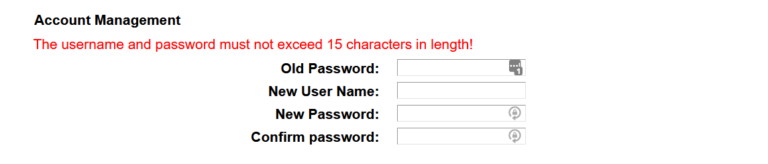
Picture shows a change password screen for a home router

You might to hunt around to find the right place to change the default administrator password – I looked on three devices from different manufacturers and each was different. The one above is from a TP link device and was found under the snappily named “System Tools -> Manage Control”.

✅Keep router firmware up to date

Router vendor providers are constantly updating and patching their routers’ firmware. These fix various problems, usually outdated programs and software that are easy for hackers to access.

These include issues with outdated:

  • VPN and multimedia functions
  • Versions of the BusyBox software
  • Linux kernels

Your users should check for new firmware at least every month. Setting reminders for your employees to check off would help improve your cybersecurity.

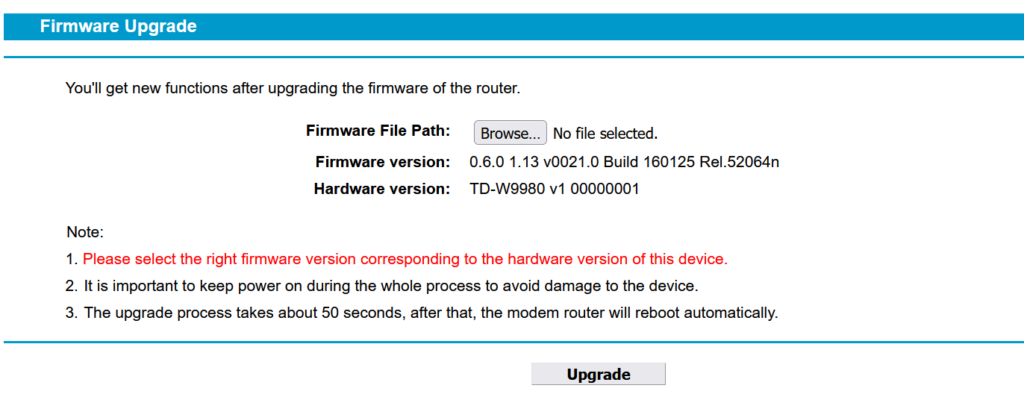
Firmware upload page on a TP link router
Webpage on TP-Link website for firmware upgrade for router

This is another example from the TP-Link router I own – this hasn’t had an update for many years and for this reason I do not use it as a internet router. If you have a router in this situation, or your staff do, it really ought to be replaced.

✅Remove remote access to the router’s admin console

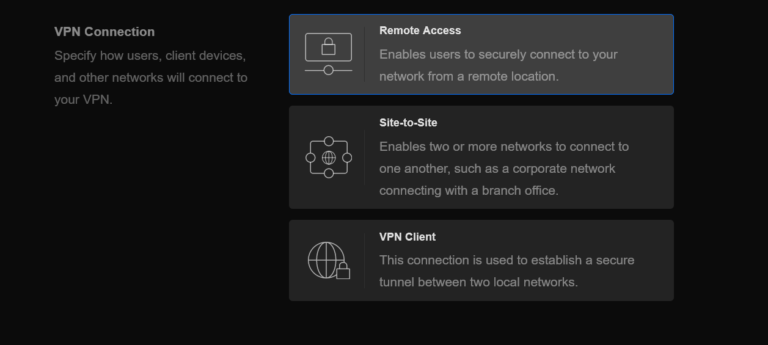
After setting a home router up, most people hardly ever look at it again (unless the internet’s a bit slow that day). Many modern routers have a function in the admin dashboard allowing remote access. This doesn’t mean over your home wireless network to the device. It means the router settings can be changed remotely from anywhere on the internet. In almost every situation, there is no need to have this switched on. In rare cases, it can be switched on temporarily, or for a specific internet-based IP address, but that would be the exception, not the rule.

Hackers can relatively quickly force their way into your home routers admin system if remote access is switched on. From here, they’ll launch DNS hijacking, remotely access your home devices, plant bugs and eavesdropping software, or use your internet IP address to disguise their illegal actions.

The lesson? Switch it off.

✅Disable UPnP

UPnP stands for ‘Universal Plug and Play’. It’s a standard way for internet-connected devices to find and connect to each other. For example, it’s usually installed on phones, tablets, computers, printers, games consoles, smart TVs and, of course, home routers. Most new routers come with UPnP enabled by default.

It’s all about convenience – but with this convenience comes a security risk that can bypass firewalls.

Most of the time, there shouldn’t be a problem. However, issues can arise when malware-infected devices connect to each other using UPnP. This most commonly leads to DDoS (Distributed Denial of Service) attacks, DNS hijacking, firewall bypasses, and personal information theft.

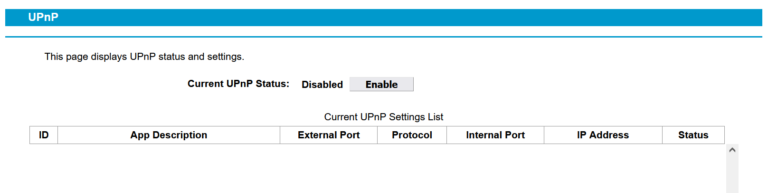
To disable a router’s UPnP process, enter the router’s IP address in a browser bar. The UPNP configuration is likely to be found somewhere in the NAT, Firewall or Port Forwarding configuration pages. Here, the UPnP Connectivity option can be disabled.

UPNP config on a TP-Link Router

✅Disable WPS

Wifi Protected Setup (WPS) is a more straightforward way to connect to new networks and routers.

The most secure wifi commonly available on a home router is WPA2-PSK (or WPA2 Personal). The ‘pre-shared key’ (PSK) is the passkey (a long, random set of 15 or so case-sensitive letters and numbers) that users enter every time they connect a new device to the router. WPS allows a user to bypass entering this PSK string of characters and instead press a button.

However, like UPnP, WPS can be broken through with ‘brute force’ since the WPN PINs are relatively simple to guess – there aren’t many possible combinations.

Although it feels irritating to enter the wifi pre-shared key every time a user connects to a new device, it doesn’t take more than a minute or two. This is a small price to pay for extra security in the long run. WPS can usually be turned off in the Wireless page of the configuration interface, although some routers simply don’t have the option to turn it off.

WPS Configuration on TP-Link Router

✅Put friends and family onto different networks

When friends, family and other guests visit an employee’s home, they might ask for the wifi password. The risk here is that anyone with access may accidentally connect a malware-infected device to the network, exposing all connected devices to that malware.

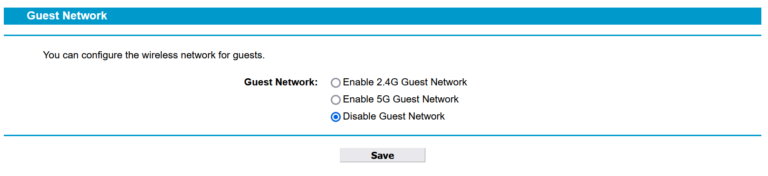
To avoid this, your home users can set up a guest network. This is basically another wifi network offered by the home router but isn’t the standard home network used every day. It allows users to connect to the internet but not to any devices you have on your home network. On the router interface, your users can login with their credentials and select Allow Guest Network (or something along those lines). Set it up with a password to protect it, still.

By doing this, any malware can’t spread to other connected devices on the network.

Users can also check what devices are connected to your router through the interface. In general, the fewer devices there are, the lower the risk is.

✅Avoid weak wifi security

There are four main wifi security protocols:

  • WEP (Wired Equivalent Privacy)
  • WPA (wifi Protected Access)
  • WPA2 (wifi Protected Access 2)
  • WPA3 (wifi Protected Access 3)

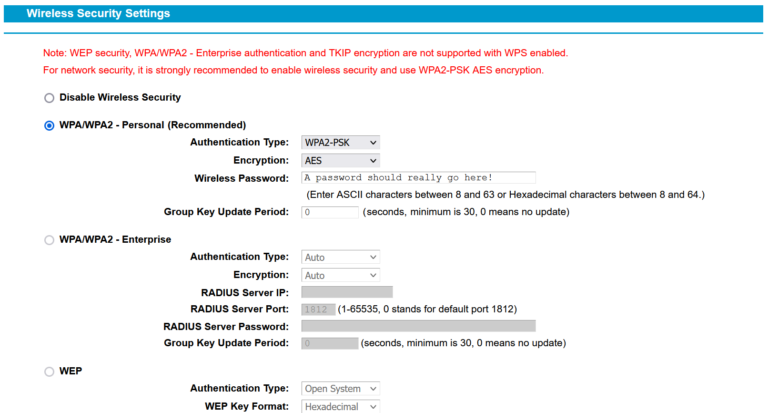
The most secure option commonly available for most average home workers is WPA2. This encrypts data far more robustly than its predecessors, WPA and WEP. The only disadvantage is that it’s still susceptible to attacks through the router. It also takes up more processing power from the devices it’s connected to, so it may affect the performance of older computers, tablets and smartphones.

WPA3 is even more protected than WPA2. However, it’s only recently been rolled out, and most existing routers aren’t compatible. You may like to consider investing in new WPA3-compliant routers for your employees to maximise your security.

Wifi security settings, wep, wpa or wpa2...

✅Access work resources over a VPN

On top of choosing the most secure wifi security protocol available, it’s also a good idea to invest in a VPN solution for your home workers. These mask the IP address of anyone accessing the internet and can even help protect information sent through public networks.

Speaking of public networks, these should always be avoided where possible. Often completely unprotected, anyone could be watching the transferred data or finding ways into connected devices. Always instruct your employees to avoid public networks unless you have provided them with a VPN back to a secure location that you control.

How can AMDH help?

If your small business, church or charity has employees working from home, giving them the advice and tools they need to remain secure is a win/win. It keeps you both protected and means you can all focus on the jobs you have to do.

AMDH is a specialist ICT consultant based in the East Midlands. We predominantly partner with our clients to develop, set up and run cloud-based ICT systems. These include new networks, security aspects, Microsoft 365 design and infrastructure setup. We’ll be glad to offer you legitimate security advice and come up with a plan to keep you and your staff’s many home routers secure.

For a friendly chat about whether we can help build and protect your organisation’s computer networks, please feel free to drop us an email (info@amdhservicesltd.com) or call us on 01332 322 588. Our friendly team are always happy to offer their professional advice and recommend what steps we could take to help.

Want to know more about ICT Security?

Want to know more?

Why not contact us to arrange a FREE consultation to talk about your ICT needs and how they could best be met?