Hello for Business, BYOD and Charities #3

This is our third blog on Hello for Business with a particular focus on how the technology works when users are using personal – rather than business – devices.

In our first blog, we explained what Hello for Business was and how it worked for users working on devices they owned – particularly focusing on the fact that it required them to change their login PIN, even though Hello for Business was set to ‘Not Configured’ in the administration portal. We also touched on licensing for non-profits.

In the second blog we covered how Hello for Business is configured and the different top level options available in the configuration.

In this blog, we’ll talk about the testing we’ve done and whether different configurations require the user to use Hello for Business or choose a different PIN.

Which scenarios we investigated

In our testing, we looked at the following scenarios:

  • A user joins a business device to Azure AD using the ‘Set up for an organisation’ option on first boot
  • A user using their own device where they have selected ‘Set up for personal use’ subsequently installs the Company Portal App and logs in using their work credentials
  • A user using their own device where they have selected ‘Set up for personal use’ subsequently installs the Office suite and licenses Office using their work credentials
  • A user using their own device where they have selected ‘Set up for personal use’ subsequently uses the ‘Access Work or School’ option to add their work credentials
  • A user using their own device where they have selected ‘Set up for personal use’ subsequently installs the Company Portal App and logs in using their work credentials with the ‘Sign into this app only’ option
  • A user using their own device where they have selected ‘Set up for personal use’ subsequently uses the ‘Access Work or School’ option to add their work credentials but clicks X when the Hello for Business prompt occurs.

Not all scenarios are relevant or available for all tests.

Which configuration options we considered

In our testing we looked at the following Hello for Business & device registration configuration options:

HfB Enrolment Identity Protection Configuration Policy MDM Scope MAM Scope
Configuration Set1 Not Configured None All All
Configuration Set2 Enabled None All All
Configuration Set3 Disabled None All All
Configuration Set4 Enabled None All None
Configuration Set5 Enabled None Dynamic Group – Business Owned Dynamic Group – User Owned
Configuration Set6 Disabled “HfB Enabled for Business Owned, HfB Disabled for User Owned” All All
Configuration Set7 Disabled HfB Enabled for Business Owned, HfB Disabled for User Owned All None
Configuration Set8 Disabled, Minimum Pin Length set to 6 None All None
Configuration Set9 Disabled, Minimum Pin Length set to 7 None All None

What information we recorded from each test

We recorded every test we did and originally planned to link to these in this blog post – but when we reached our 40th test video, we realised that no-one is going to watch these videos… they’d be really boring after a while. Consequently we are simply going to record the results.

What we were particularly interested in was:

  • Was the device AD joined or AD registered?
  • Was the device managed by Microsoft Endpoint Manager?
  • Was Hello for Business required?

Any other relevant information – e.g. when did Hello for Business take effect

The results

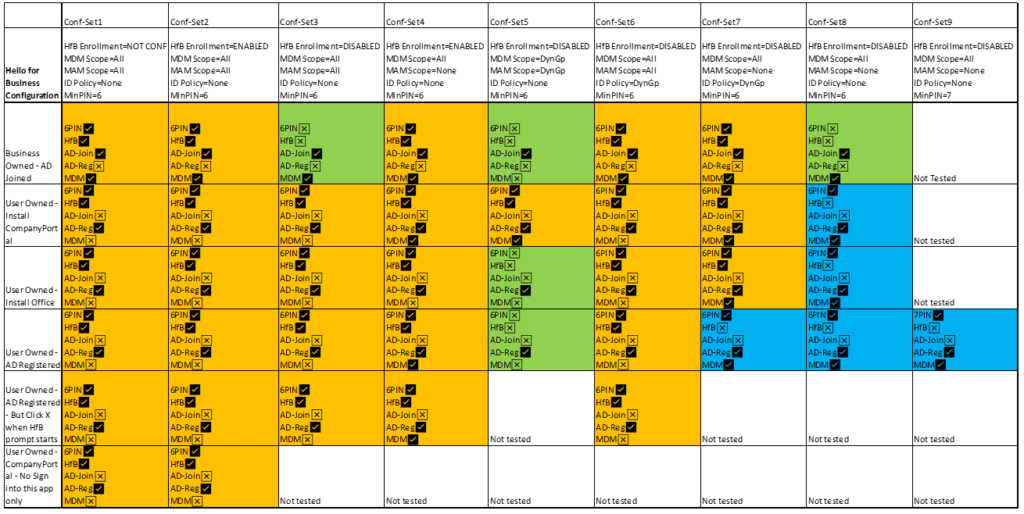
Hello for Business Test Results
Green - hello for business and 6 digit pin not required | Orange - Hello for business and 6 digit pin required | Blue - hello for business not required but 6 / 7 digit pin is required

The findings

We made the following observations based on our testing:

  • The minimum PIN length setting in the enrolment configuration page for Hello for Business is applied, regardless of whether Hello for Business is enabled, disabled or not configured.
  • The simplest way in which to ensure that users using personal devices are not required to change their PIN to a longer one is to modify the configuration of the Minimum PIN length in the enrolment Hello for Business configuration. However, this will also result in the same PIN length being used by users on business-owned devices which might not be desirable.
  • The only time that the minimum PIN length setting in the enrolment configuration page for Hello for Business is not applied to personal devices is when a dynamic group is used as the for both the MDM and MAM enrolment scopes such that personal devices are in scope of MAM but out of scope of MDM and Company Portal is not used. However, this is not necessarily a desirable scenario as this is essentially allowing unmanaged devices access to company resources.
  • When Hello for Business is set to ‘Not configured’ or ‘Enabled’ in the enrolment settings and the MDM and MAM enrolment is left as ‘All’ it is effectively required in every scenario
  • When Hello for Business is set to ‘Disabled’ and the MDM and MAM enrolment scope is set to ‘All’, it is effectively required for user-owned devices, but not for business-owned devices.


There are also a few things that having done this work I really don’t understand:

  • How can a device be MDM managed even though it is not domain joined and does not have Company Portal installed? What mechanism is used to apply policy to such devices?
  • How can a dynamic group be used for scoping enrolment and genuinely work? For example, if two dynamic groups are used during enrolment to decide whether a device should be MDM managed or MAM managed how does this work because neither group will have had time to refresh to include the device. This is the case in configuration set 6.
  • For business owned devices that will be AD-joined there should be no difference between configuration set 6 and configuration set 8, but in the former the device ends up not MDM managed, in the latter the device ends up MDM managed. Is this because the dynamic group membership required for the MDM join in configuration set 6 had not occurred at the time the MDM join event took place?

Conclusion

I had hoped to be able to provide a clear explanation why specific things happen, but in honesty, the test results don’t really make much sense. I think the only thing I can say about this with certainty is that disabling Hello for Business at enrolment doesn’t really seem to disable it in all scenarios and even when it does it does not necessarily disable the minimum PIN length constraints.

I guess the best approach for organisations wanting to ensure that they don’t force users using their own devices to change their PIN would be to set the enrolment ‘minimum PIN length’ in the Hello for Business configuration to ‘4’ and then create an Identity Protection Configuration Policy with the ‘minimum PIN length’ set to something higher and apply that policy to corporate devices through use of a dynamic group. This would have the effect of users being able to create a short PIN on corporate devices but later being required to replace it with a longer PIN, while users on their own devices would retain the short 4-digit PIN enabled by default on home devices.

Want to know more about ICT Security?

Want to know more?

Why not contact us to arrange a FREE consultation to talk about your ICT needs and how they could best be met?