Just over a year ago, I was onboarding a new charitable organisation to Microsoft 365 using Business Premium Licensing. Everything was going well until I got called by one of the organisation’s trustees asking me what “Hello for Business” was and why they were required to modify their (personally-owned) PC’s login password as a consequence of using the organisation’s business premium licence for the Office suite on their personal device. They – perhaps rightly – took umbrage at the idea that the charity’s ICT software had effectively forced a change to their home PC.
I then spent some time reading about this issue and discovered that the installation of the Office suite onto a user’s device – irrespective of whether it is a corporately-owned or personal device – forces some default policy settings onto that device. Crucially, if the user is using a login PIN that doesn’t have at least 6 characters, they will be forced to change this to one that does.
Having discovered this and identified that it wasn’t a straightforward task to turn this feature off without consequences, I parked the issue until I could investigate it further at a later date. Over the past month, I have tested this issue further and come to some conclusions.
For small businesses, charities and churches, many employees (and owners!) now work online full- or part-time. Guiding them in securing their home router is an essential part of your organisation’s cybersecurity.
Microsoft 365 Business Premium for Non-Profits
If you are reading this thinking ‘I work for a small charity or church and we don’t have Microsoft 365 at all’, then let me clear this up for you. For UK charities, if you are registered with the Charity Commission for England & Wales and have a charity number, or your organisation is VAT-exempt, you probably qualify as a non-profit in Microsoft’s eyes.
If you’re a church or other religious organisation but aren’t a registered charity – such as a church in a recognised denomination – then you also probably qualify.
For Microsoft-approved non-profits, there are two types of licence and three types of people available:
Licence types:
- Grant licences – licences that are provided for your use free of charge, these are limited in number per organisation
- Discount licences – these licences are cheaper than the commercial equivalent but you still have to pay something.
Types of People:
- Paid employees – can use both grant and discount licences
- Unpaid executive staff – can use both grant and discount licences
- Volunteers – can use discount licences, or be invited to collaborate as a guest
For more information, please get in touch by emailing info@amdhservicesltd.com or look at the Microsoft Non-Profit eligibility page here. I have not covered, nor intended to cover, all the eligibility requirements here so please do look at the Microsoft page about this for the full detail.
Microsoft 365 Business Premium for Profits
Just a quick note here to say that if you are not a non-profit and are reading this blog, the content regarding how Hello for Business works is still valid regardless, so it’s worth you reading on too.
Microsoft 365 Business Premium on personal devices
The Business Premium licence allows the Apps for Enterprise suite (i.e. Office – Excel, PowerPoint, Word, Outlook etc) to be installed on up to five PCs or Macs, five tablets and five mobile devices. Out of the box, it doesn’t care whether the devices are personally-owned or business-owned and as such, it’s quite possible for users to install it onto their own devices provided you have not configured a policy that prevents this.
For more information see https://www.microsoft.com/en-gb/microsoft-365/business/microsoft-365-frequently-asked-questions
Windows Hello and Hello for Business
Hello and Hello for Business offer users a very similar experience – both types of ‘Hello’ allow a user to login to a device using a PIN, fingerprint, facial recognition etc, provided the PC or laptop has the necessary hardware. The user initially logs in with a username and password and then sets up Windows Hello or Hello for Business for subsequent logins.
The difference is in how said identification data is stored, so future access can be verified.
Windows Hello stores the password locally and essentially ‘unlocks’ the password using the PIN, fingerprint or facial recognition etc. The actual user password and Windows Hello data is only stored locally on the device and is only locally relevant. Microsoft describes this as a ‘convenience’ sign-in, as it saves the user having to type out their password.
Hello for Business is intended for situations where a user’s identity is verified by a corporate identity provider (Azure AD). It uses public key infrastructure (i.e. a public key and a private key) to secure the communication between the user device and the identity provider. The private key is device-specific and never leaves the device, while the public key is retained by the identity provider to verify the information provided as being from that specific device. Again, the PIN, fingerprint, facial recognition etc is used to unlock the private key in order to authenticate and communicate with the identity provider.
To summarise, Windows Hello makes it more convenient for users to login, while Hello for Business offers the same benefits as Windows Hello but also secures the communication channel with a corporate identity provider.
Businesses and NonProfits alike should be using Hello for Business.
So, what happens when installing Office onto a device?
You might be wondering what happens that is so bad that it requires an entire blog post dedicated to the issue, so here goes…
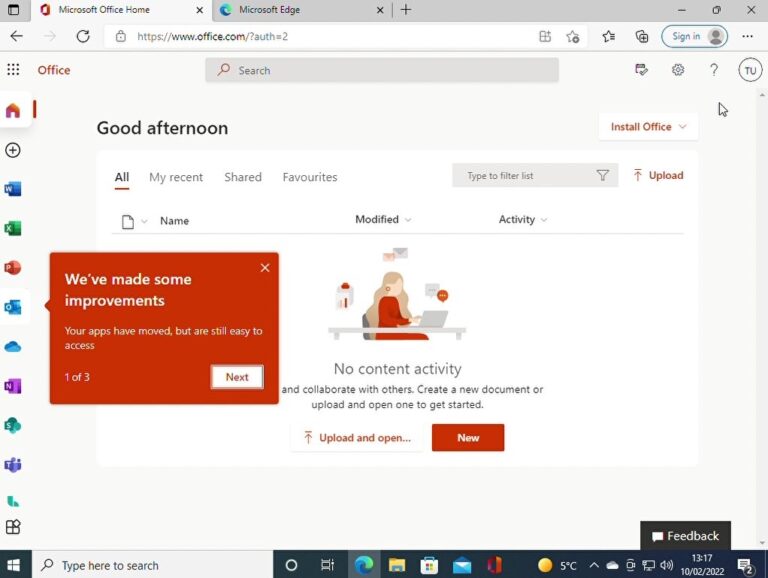
Let’s suppose you’re logged into your home PC and your organisation has just given you login details for Microsoft 365, so you open a browser and access Office on the Web:
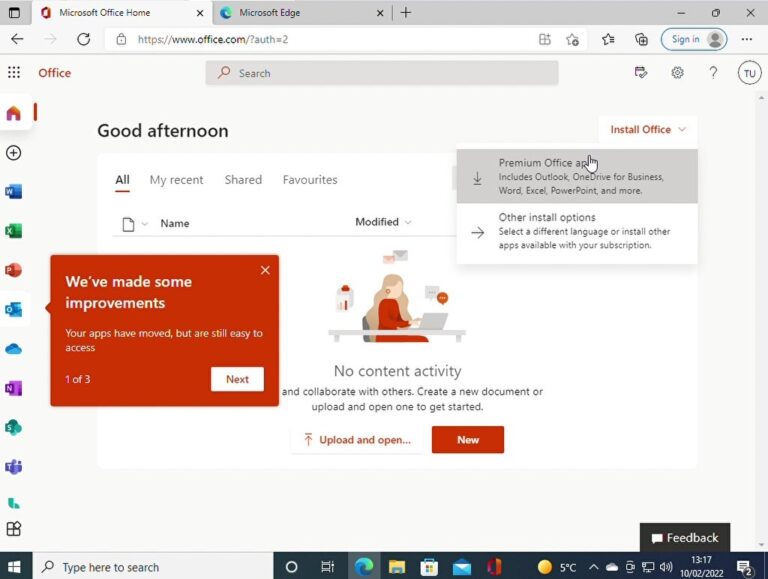
You notice in the top right corner of the web page ‘Install Office’ and you think, ‘I don’t have an up-to-date version of Office – let’s see what happens’, so you click the link and choose ‘Premium Office Apps’.
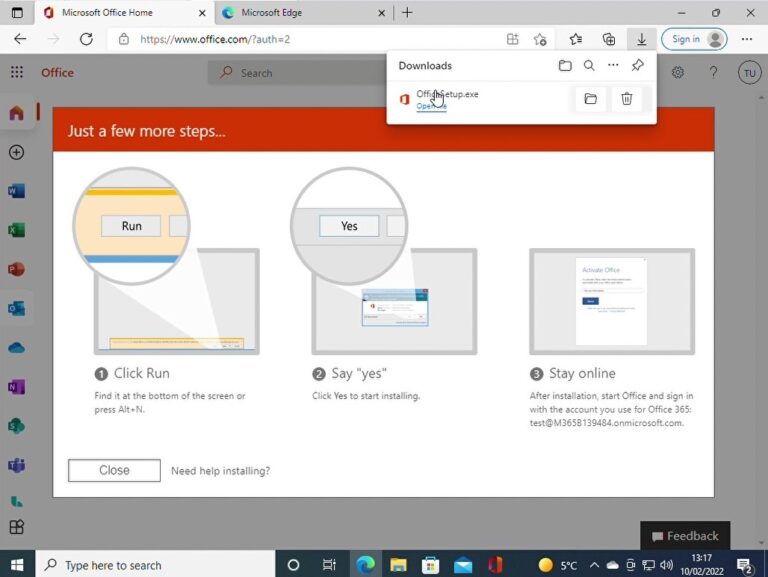
The download starts – when it finishes, you click on the download to launch the installer.
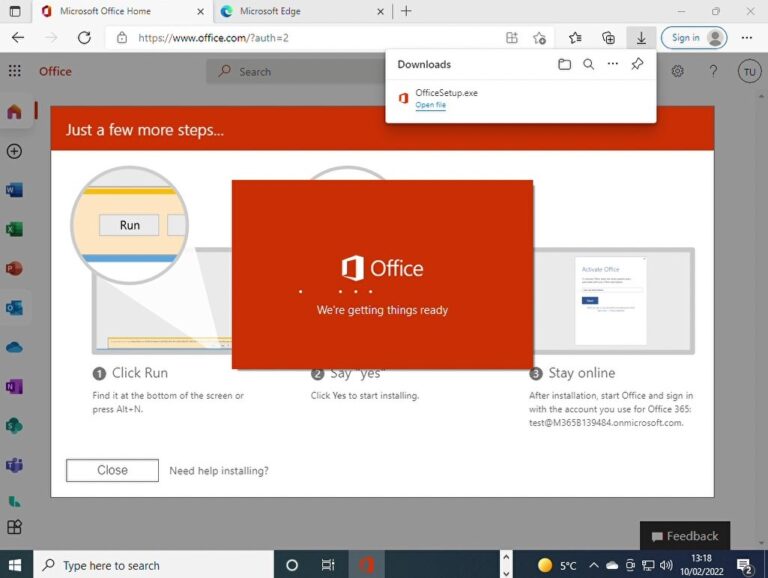
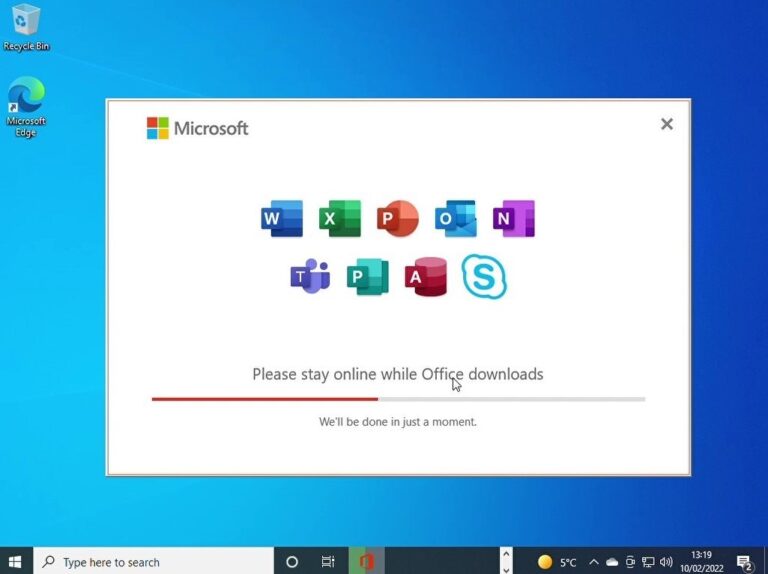
The Office installation starts
You wait while Office sorts its installation out
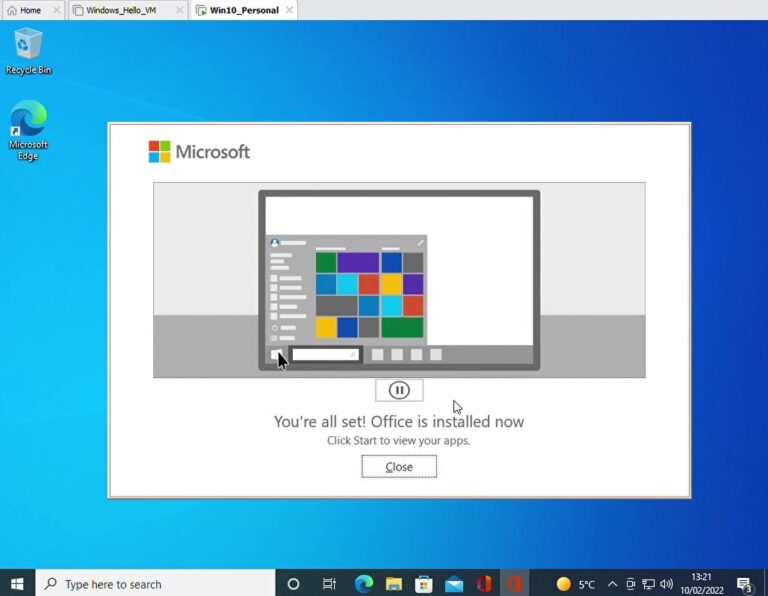
Finally, Office finishes installing
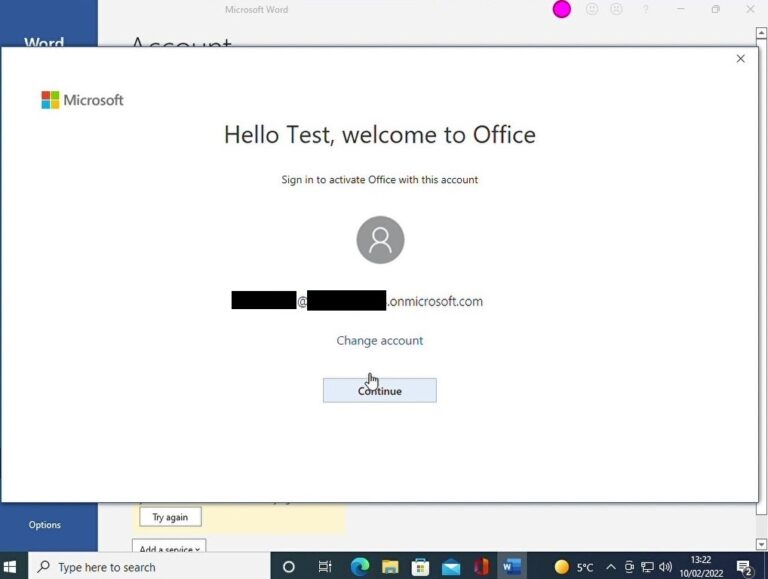
You launch Word and notice you need to activate Office so click the link…
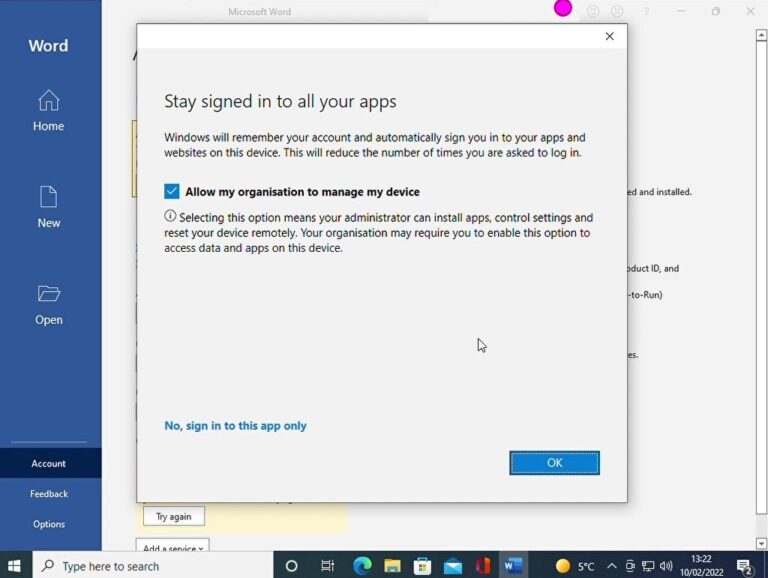
You enter your username and password, complete MFA, and then you see the below prompt.
You click ‘OK’ and see the below screen:
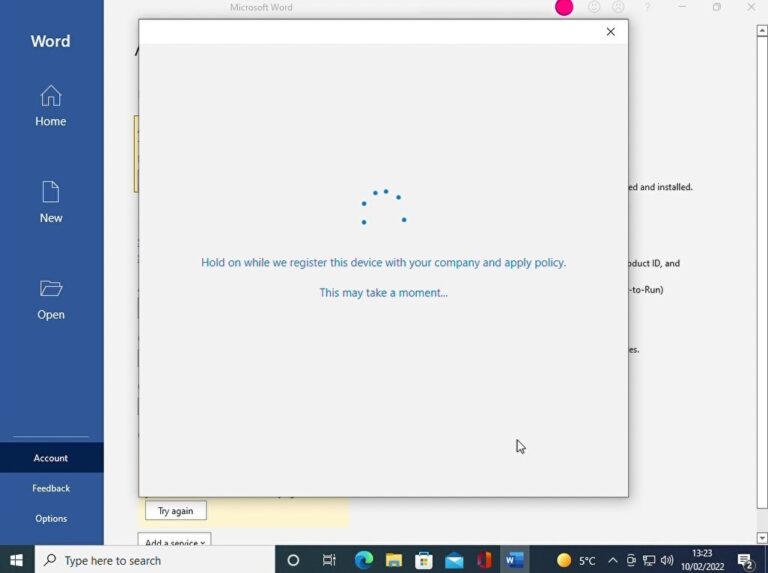
Dutifully, you hold on and wait for the company policy to be applied, whatever that is. Eventually, you get asked to approve a sign-in using the authenticator app and then see the below message:
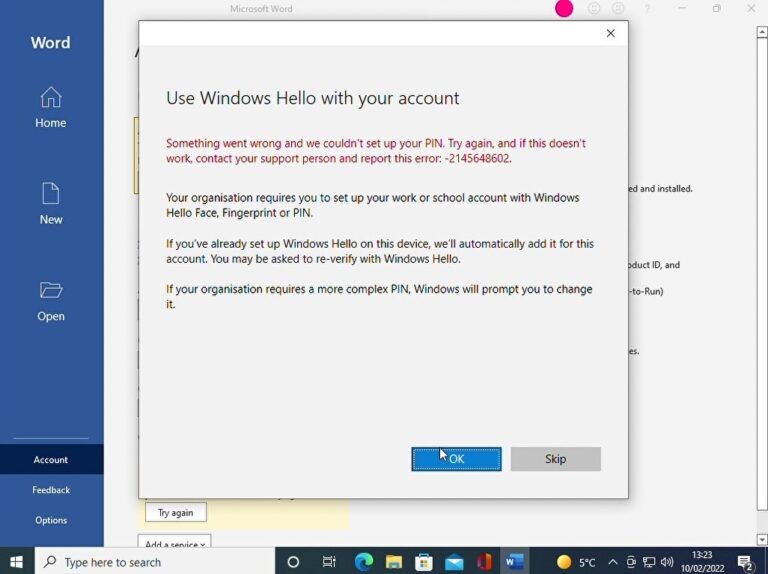
You dutifully click ‘OK’ – after all, it’s the only option. It goes away and then comes back to tell you:
Something went wrong… okay – you aren’t sure what, but hey ho… you click ‘OK’ again, thinking nothing more will come of it.
You then go through the process of accepting the EULA, choosing which type of document you want to save files as and then you decide to close Word and restart your PC.
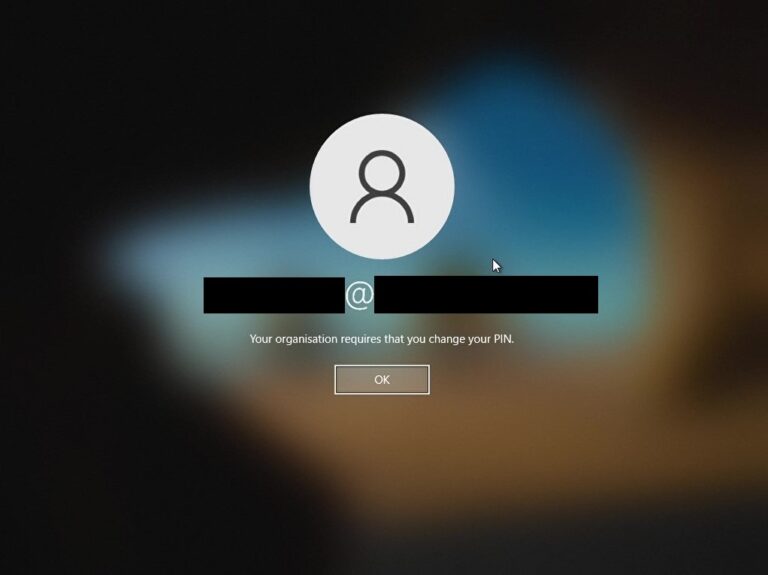
When the PC comes back up, you enter the 4-digit PIN you set for convenience – after all, why bother with something more complex? Your PC is only ever at home anyway! However, suddenly from nowhere, you get…
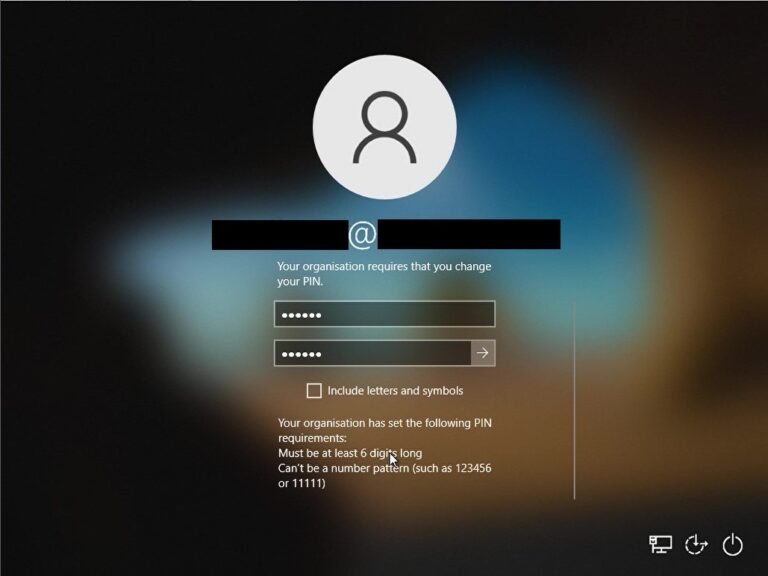
‘Your organisation requires that you change your pin’. To what?
To a pin 6 characters long that isn’t a recognised pattern. This is the issue my customer was complaining about.
Next Time
In my next blog post I will detail the reason this occurs and what happens when you change the configuration settings for Hello for Business, and some general thoughts about whether you really want to change the settings or not…