M365 Multiple Generic Users Single Device

Imagine for a moment you have a PC in a shared location. Perhaps it’s for staff who don’t have their own devices. Perhaps it’s in a meeting room connected to a projector. Users come to the room and they log in to the device, they complete whatever work they need, and then they log out and leave.

Each user who logs into the device and has access to the Office suite needs to have their own licence. But suppose for a moment there are 50 devices and you log into a different one each day for 50 days, on day six, you would have a problem because Microsoft 365 business and enterprise licences that include the Office suite only allow for its activation on up to five devices.


Shared Computer Activation

For this scenario Microsoft has ‘Shared computer activation for Microsoft 365 Apps’ – as Microsoft states here, when using a PC on which the Office apps have been activated using shared computer activation the activation ‘doesn’t count against that limit’. This is targeted against a range of scenarios including:

"Multiple employees use Office on a computer that's located in a conference room or some other public space in the company."

To utilise shared computer activation however every user who accesses the PC must have either:

  • Any plan that includes Microsoft Apps for enterprise (i.e. M365 E3 or M365 E5)
  • Or Microsoft 365 Business Premium

Further – users must all be individually licenced – not working on generic shared accounts – as Microsoft state in their licencing guide ‘Microsoft 365 is licenced per user’.

Device-based licencing

Another option available to Enterprise and Education customers is device-based licencing for Microsoft 365 Apps. This allows licences to be assigned to a group in Azure AD and then devices that are intended to use ‘device-based licencing’ to be added to that group. This is specifically targeted:

"...to simplify management of Microsoft 365 Apps for enterprise (previously named Office 365 ProPlus) on devices shared by many users. Anyone that signs in and uses that device can use Microsoft 365 Apps for enterprise to create and edit documents...."

But the ‘device-based’ licenses are available only through either an enterprise agreement or enrolment for Education Solutions (ESS). Consequently, this option including its ‘Anyone that signs in… can use Microsoft 365 apps’ element is simply not available for smaller organisations or charities who are unlikely to have a enterprise agreement.

Another Scenario

Consider for a moment a slightly different scenario, let’s say this time that you are a small charity – perhaps you are an after-school club. In your office you have a PC that is used for charity business and its used by volunteers and staff. You need to licence that PC for all the people that use it, but its different people on different days depending on when the different volunteers can work. So, safeguarding records might be updated by different people on different days, the same for records about what the kids have done, who attended, sometimes kids might use the PC, etc.

No viable licencing option

Strictly the club should licence ‘per user’ and the club should use any donation licences (free – up to ten) from Microsoft for staff, should buy individual licences for volunteers and kids. But this for a charity would work out as far too expensive.

Another option would be to buy a perpetual device licence for Office Pro Plus, but this would mean no access to the Microsoft 365 environment for cloud storage of documents etc.

What the club would really like to do is have named individual logins for staff, but then have generic logins for volunteers who need access to a limited range of content, and a different generic login for kids who need access to a different limited range of content.

But this is not allowed under the Microsoft 365 licencing terms and conditions as ‘Microsoft 365 is licenced per user’.

Implementing the best solution – viable or not!

What follows below is how this could be implemented with a mix of individual accounts for named users, and generic accounts for volunteers and kids. This is not licencing-compliant but I suspect its how many smaller organisations operate because they have been given no viable option by Microsoft.

1️⃣Create the user accounts in Microsoft 365 Administration Portal

You could achieve this task in Azure AD also – but the user experience is, in my opinion, slicker in Microsoft 365 Administration Portal.

In the admin portal (https://admin.microsoft.com/Adminportal/) go to Users -> Active users and select “Add a user” from the choices at the top of the list of users.

Microsoft 365 Add User Dialogue

There is nothing in the user creation process that verifies if the user is a genuine person or not so you can create whatever name you want here.

At the next screen you allocate the license to the account.

Skip the optional settings and click “Finish adding”.

2️⃣Enable Shared Computer Activation

When a device is licenced using ‘traditional’ per user licensing the Account pane in Office apps shows who owns the licence on the right under the ‘Subscription Product’ section as show below:

Screenshot of Word showing account page before shared activation has been enabled
There are several different ways of enabling ‘shared computer activation’, for small organisations where there are only one or two devices that need this to be enabled I’d advise using the ‘Edit the registry’ method as it avoids the complexity of using a GPO or Intune policy, this is the method I’ve outline below. Click the Start Menu and type ‘Regedit’ and press enter. Once Registry Editor opens navigate to:
    HKEY_LOCAL_MACHINE\SOFTWARE\Microsoft\Office\ClickToRun\Configuration
Here you need to add a string named ‘SharedComputerLicensing’ and give it the value ‘1’. You will probably find the string doesn’t exist in this location until you add it.

Once the device has rebooted if you open one of the Office apps and go to the Account pane again you will notice that the details of who owns the licence have gone:

3️⃣“Enumerate” the logins

What is “Enumeration”?

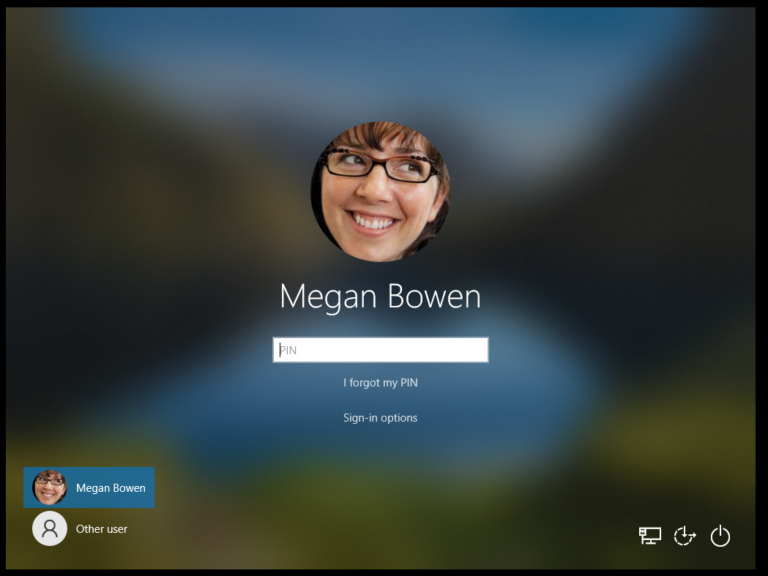
By default on Windows 10 / 11 at the login screen for domain users only the user who last logged in to the device is shown. For example, on my demo environment as shown below:

When Megan Bowen last logged in the login screen looks like this:

Login Screen when users are not enumerated - first example

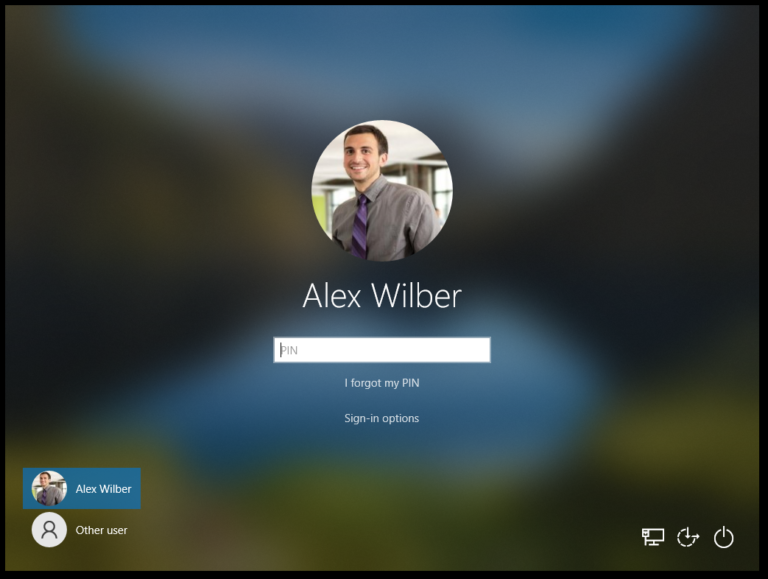
If Alex Wilber logs in and then logs out then Megan Bowen is not shown any longer in the list at the bottom left…

so when Megan wants to log in she’d have to click ‘Other user’ and then enter her full email address. In our scenario might have the accounts; ADMIN, SAFEGUARDING, KIDS, but the actual logins would be:
  • ADMIN@yourkidsclubname.co.uk
  • SAFEGUARDING@yourkidsclubname.co.uk
  • KIDS@yourkidsclubname.co.uk
It would be fact better for the users to merely have to click a button that says ‘ADMIN’ or ‘KIDS’ and enter a PIN to gain access. This is called ‘user enumeration’.

Enabling ‘Enumeration’

To enable user enumeration open the Local Group Policy Editor using the gpedit command and go to:

    Computer Configuration -> Administration Templates -> System -> Login

Once there find the entry for ‘Enumerate local users on domain-joined computers’:

Double click the entry and modify it to ‘Enabled’ then click ‘Apply’ and ‘OK’.

Encourage users to ‘Sign out’, not ‘Shut Down’

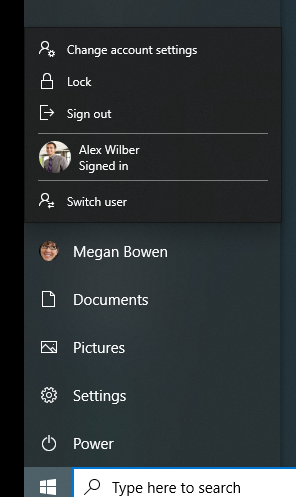
Let’s suppose you have someone in the Office working on Admin from 9am til 4pm, then at 4pm your safeguarding officer needs to login and write up some notes. You need to sign out from ‘Admin’ and sign in to ‘Safeguarding’ – to do this the user will click on the start menu and rather than clicking the shutdown button (which will only offer Sleep, Shutdown, and Restart) you click your picture in the left bar of the start menu and from there select ‘Sign Out’.

Conditional Access Considerations

If you have Azure AD Security Defaults enabled and are looking at the approach outlined then my recommendation is to migrate to using Azure AD Conditional Access. If you do not then you will encounter problems when you are asked to set up MFA for the account and the only allowed option is an Authenticator App… clearly this is only ever on one person’s phone and if that person isn’t there then you won’t be able to gain access.

If you are already using Azure AD Conditional Access then you should think about how these accounts will interact with your ruleset and consider if they need excluding from certain rules.

For example, if you require MFA either at every login, or periodically, then you need to ensure these accounts are either excluded or that MFA is achieved using an Office phone physically adjacent to the device on which the accounts are used. You might also want to think about how to prevent the account being used on any device except that on which it is intended to be used.

Final thoughts

Personally, my opinion is that its very short sighted of Microsoft to not offer any solution to this problem that is genuinely viable for small charities. I don’t believe the device-based licence helps here but rather what is needed from Microsoft is permission to use generic accounts for scenarios such as that which I outline above – where a charity owned PC or laptop is being used by volunteers on charity business.

The only reason I can see why Microsoft would not do this at present is a fear that it will result in people not properly licencing their environments. But to me this seems rather unlikely as Microsoft has already provided free licences to the charity in the first instance and most charities want to been seen as open and transparent… after all neither the charity or Microsoft really want to be in the news with a headline ‘Microsoft opens licencing non-compliance case against charity’.

Want to know more about ICT Security?

Want to know more?

Why not contact us to arrange a FREE consultation to talk about your ICT needs and how they could best be met?